Godot Stable or Beta? Choose a Version Without Derailing Your Game
A preview build is tempting when it promises the feature you need. Use this practical release checklist before moving your working Godot project.
By Duangduean Studios
A practical guide based on Godot’s release policy, checked on 24 November 2026.
There is a familiar moment in game development: you read about a feature in a newer engine build, and suddenly upgrading feels more productive than finishing the scene already open on your screen.
Sometimes an update solves a genuine problem. Sometimes it introduces a second problem before the first one is finished. The decision becomes easier when you separate the kind of release from the reason you need it.
Read the version number first
Godot’s release policy distinguishes major, minor and patch releases. Major changes can require substantial porting. Minor releases add features but can include limited compatibility changes. Patch releases concentrate on maintenance, and the project recommends keeping a stable branch updated to its latest patch.
The policy also says testing is necessary when moving to a new minor release. A familiar-looking version number is not a substitute for checking your particular project.
Use the official download archive to confirm whether the build you are considering is stable or marked as a preview. This article deliberately avoids naming one permanently “latest” version.
Decide what the upgrade is for
Here is our suggested decision rule: write down the specific problem the update should solve before opening your working project in it.
“Newer” is difficult to test. “The exported build no longer loses this input action” is testable. So is “this renderer supports the visual effect we need on our target hardware.”
A preview can be useful for an isolated experiment. Moving an entire production project is a separate decision and deserves its own checkpoint.
Test a copy, not your only working project
Keep a recoverable version of the current project and its engine version. Then use a separate copy or branch for the upgrade trial. Do not assume an older editor will reverse changes made by a newer one.
Our practical smoke test is deliberately small:
- Open the main scene and check for import or script errors.
- Exercise movement, collision, UI and save/load behaviour that your game actually uses.
- Export to the intended platform.
- Run that export outside the editor.
- Compare a representative scene on the hardware you care about.
Record the result. The point is to make a decision you can explain, rather than rely on whether the editor happened to open successfully.
Keep experimentation inexpensive
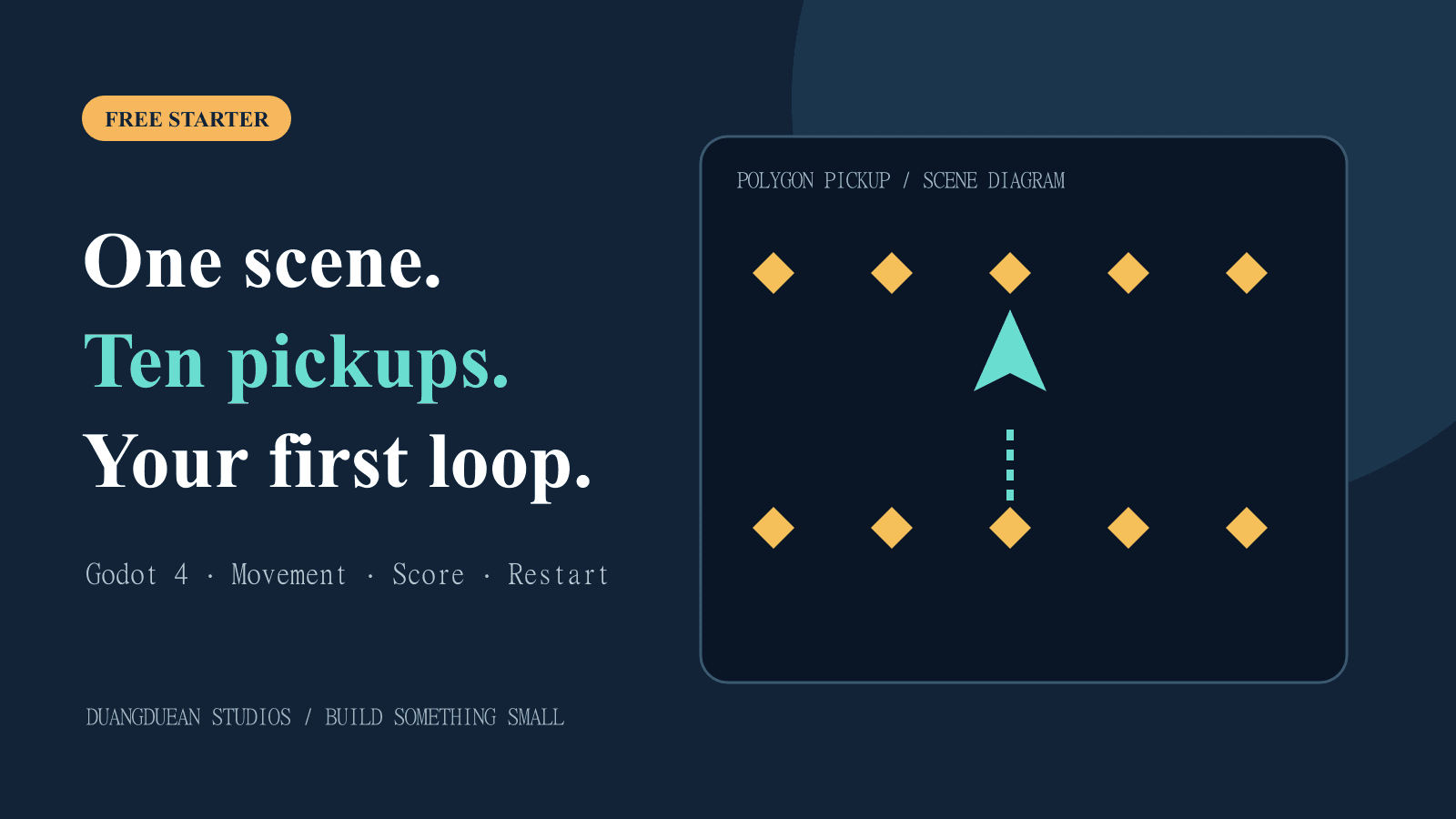
If you are learning, a disposable starter project is a good place to compare versions. Our gives you movement, pickups and scoring to exercise without first migrating a large game.